

Microsoft Solitaire Collection
- Reviews
- 3.9
- Version
- 4.26.8111.1
- Installs
- 10,000,000+

Screenshots



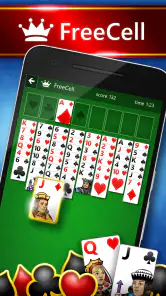
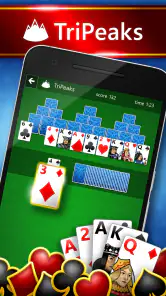


 Analysis by Frivlyz
I opened Microsoft Solitaire Collection expecting a familiar card game and found something broader: a collection built around classic Solitaire variations, with extra match-3, arcade, and puzzle activities alongside them. That mix makes it easy to start with a quick traditional game and then switch styles when a standard deal no longer feels fresh. The app is free to install, suitable for Everyone, and developed by Microsoft Corporation, so it feels like a polished mainstream choice rather than a small experimental card title.
My first impression was that the collection is best understood as a casual game shelf, not one single Solitaire table. That distinction matters. If you want a quiet few minutes with cards, it can serve that purpose well. If you prefer a focused competitive card game, a deeply strategic collectible-card experience, or a completely ad-free environment, you may want to compare it with more specialized alternatives before settling in.
What to expect from the collection
The central appeal is variety. Instead of committing you to one ruleset, the game gives you access to classic Solitaire modes and then adds other bite-sized formats. I like that arrangement because it supports different moods: a familiar card layout when I want something relaxing, a puzzle-like challenge when I want more concentration, and a faster arcade-style activity when I do not want to spend time planning every move.
That variety also changes how I judge the app. A player looking only for Klondike-style Solitaire may find parts of the collection unnecessary, while someone who enjoys switching between small games will probably see the extra modes as the main reason to keep it installed. The store summary presents the same broad idea, but in practice the important question is whether you enjoy having several casual activities in one place instead of choosing a separate app for each one.
The game has a 3.9 average from around 284 thousand ratings, with roughly 29 thousand written reviews. Those figures suggest a large, established audience, but they also tell me not to treat it as universally loved. A collection with several modes naturally attracts people with different expectations. Some will value the familiar card games, while others may judge the experience by presentation, monetization, or the quality of the additional puzzles.
It has passed 10 million installs, which is another sign that it occupies a well-known place in the mobile card-game category. I would still avoid choosing it simply because it is popular. The better reason is practical: you want a free Solitaire-focused app that also gives you other short games to try when you need a change of pace.
Microsoft Solitaire Collection is listed as a free game, with optional in-app purchases ranging from $0.99 to $9.99 per item. That makes the initial decision simple: you can begin without paying. I recommend treating the purchase options as optional rather than part of the basic test. Spend a little time with the free experience first and decide whether the collection genuinely fits your habits.
Gaming Stories You May Enjoy

Dancing Road Turns Short Breaks Into a Test of Rhythm and Timing

Super Stylist Makes Every Outfit a Test of Taste and Patience

Dominoes on Your Terms: Who Should Play and Who Should Pass

Pokémon GO Makes the Familiar World Feel New

Chess.com Turns Rematches Into Rivalries, but Community Has Its Costs

Archery Battle 3D Review: Sharp Aiming, Unclear Feedback
Installing it without overthinking the choice
The app supports Android 7.0 and later. For a first-time user, the practical takeaway is to check your phone’s Android version before trying to install it, especially if you are using an older device. On a compatible phone, the setup is straightforward: install the game, open it, and begin exploring the available activities rather than searching for a separate Solitaire download.
The current version is 4.26.8111.1. Version information is useful when troubleshooting because it gives you a clear reference point if the app behaves differently after an update. I would not make the version number a reason to delay trying the game, but keeping the app updated is sensible for a title that combines several modes in one package.
Because the content rating is Everyone, the game is positioned for a broad audience. That makes it suitable for someone introducing a family member to mobile card games, although personal preferences still matter more than the age label. A child may prefer the brighter puzzle or arcade activities, while an older player may care most about the classic Solitaire tables and readable card layouts.
The first five minutes: finding a comfortable starting point
My advice to a new player is not to investigate every mode immediately. Start with the most recognizable Solitaire option and play one complete deal. The goal is not to understand the entire collection at once; it is to learn how the cards respond to taps, whether dragging feels comfortable on your screen, and how easily you can tell which moves are available.
That first game is also a useful test of the app’s rhythm. Solitaire is often played in small gaps during the day, so the interface needs to make quick decisions easy. I pay attention to whether I can identify the next useful card without staring at the screen, whether undoing a mistake feels natural, and whether the game lets me return to the action without making the opening process feel like work.
A good first session should end with one clear success: completing a useful sequence, exposing a hidden card, or finishing a deal. I find that aiming for a small, visible improvement is more reassuring than trying to master every rule immediately. Once you understand how the cards move, the other modes become less intimidating because you already know how the collection presents its games.
One practical habit helps more than beginners expect: pause before moving a card that is currently playable. In Solitaire, the legal move is not always the best move. I try to ask whether moving a card will uncover something valuable, preserve an empty space for a king, or block a sequence that I may need later. This turns the first successful action into a lesson in planning rather than simple tapping.
How I use the extra games without losing the main thread
After finishing a classic deal, I usually sample one of the match-3, arcade, or puzzle activities instead of jumping through all of them. This helps reveal whether the collection’s broader design suits me. The extra formats are useful when I want shorter, more active sessions, but they can also distract from the calm card-game experience that brought me to the app.
My preferred workflow is to use the card modes as the default and the other activities as palate cleansers. For example, if I have a few quiet minutes before an appointment, I begin with Solitaire. If I make an early mistake or simply feel mentally tired, I move to a puzzle-style activity rather than forcing myself through another card deal. This makes the collection feel more flexible than a single-purpose Solitaire app.
There is a trade-off here. A dedicated Solitaire app may feel cleaner because every screen and option supports one type of play. Microsoft’s collection is more useful for variety, but the wider menu can make the experience feel less focused. I would choose the dedicated alternative if I wanted the smallest possible interface and no interest in match-3 or arcade games.
Common confusion for new players
The first source of confusion is assuming that every mode uses the same kind of thinking. Classic Solitaire rewards careful sequencing and patience. Match-3 play usually emphasizes pattern recognition and quick combinations, while arcade and puzzle activities may ask for a different pace altogether. When I switch modes, I reset my expectations instead of judging each one by the standards of the card tables.
Another common mistake is treating every available move as equally good. In a traditional deal, moving a card because the game allows it can reduce your future options. I try to expose face-down cards when possible and avoid filling an open space too quickly unless the move creates a clear advantage. This is a small strategic adjustment, but it makes the difference between random play and a more satisfying attempt.
New users may also wonder whether they should pay immediately. I would not. Since the game is free to start and the optional purchases are priced per item, the sensible approach is to learn which parts you actually use. If you only play an occasional classic deal, paying may not add enough value. If you return often and find the collection’s extras useful, you can make that decision later rather than buying before you know your habits.
The rating is another detail worth interpreting carefully. A 3.9 average is neither a warning to avoid the app nor proof that every player will enjoy it. It tells me to expect a mixed experience depending on what people want from a Solitaire collection. Someone seeking a broad set of casual games may be satisfied, while someone expecting a minimal, distraction-free card table may be more critical.
It is also easy to confuse “free” with “completely without friction.” A free game can still ask you to navigate optional purchases or choose among several modes. I recommend deciding on your preferred play style early, then ignoring anything that does not contribute to it. That simple boundary keeps the app from becoming more complicated than the short card sessions it is meant to support.
Everyday situations where it works well
I find the collection most useful during short, irregular breaks. It fits a waiting room, a commute when I am not driving, or a few minutes at home when I want something more engaging than scrolling. A classic deal gives me a natural stopping point, while the shorter-feeling puzzle and arcade options make it easier to play without committing to a long session.
It can also be a gentle way to introduce someone to mobile gaming. The card rules are familiar to many people, and the extra modes provide a path toward something more visual or active. I would start a new player with the most recognizable Solitaire table, let them complete a few moves, and only then show the other activities. Presenting the whole collection at once may make it seem busier than it needs to be.
For concentration practice, I prefer using the game deliberately rather than playing on autopilot. I set myself a simple objective, such as looking for moves that reveal hidden cards or avoiding unnecessary rearrangements. The point is not to claim that the app replaces a dedicated brain-training tool; it does not need to. Its value is that it gives ordinary downtime a small amount of structure.
On the other hand, I would skip it if I want a strong social component, a serious competitive ladder, or a story-driven game. Nothing about the core identity suggests that it is designed to replace those genres. It is better suited to solo, casual play where the pleasure comes from solving a deal, clearing a layout, or switching to another compact challenge.
How it compares with familiar alternatives
Compared with a basic Solitaire app, Microsoft Solitaire Collection offers more variety but also more to browse. A minimalist alternative can be better for someone who wants to open one game and begin immediately. Microsoft’s version makes more sense for a player who likes classic cards but does not want to install separate match-3, arcade, and puzzle games.
Compared with collectible card games, the collection is less about building a deck, learning a large card pool, or competing against other players. That is a strength if you want a low-pressure experience. It is a limitation if progression, strategy built around card combinations, and long-term competitive depth are the main reasons you play card games.
Compared with puzzle-only apps, this collection gives you a familiar fallback when you are not in the mood for constant visual problem-solving. The compromise is that no single extra mode necessarily becomes as deep or specialized as a dedicated title. I see the collection as a convenient middle ground: broader than a simple Solitaire table, but less focused than an app built around one puzzle format.
Small habits that improve the experience
First, use one mode as your anchor. I choose classic Solitaire because it gives the collection a clear purpose, then visit the other activities when I want variety. Without an anchor, it is easy to browse instead of play, especially during a short break.
Second, treat an early loss as information rather than a reason to quit. When a deal goes wrong, I look back at the point where I opened or buried an important card. This is more useful than immediately starting another game because it helps me recognize patterns in future layouts.
Third, separate experimentation from routine play. When I have time, I sample a different activity and learn how it feels. When I only have a few minutes, I return to the mode I already understand. This approach reduces the small mental cost of choosing and makes the app work better for everyday use.
Finally, keep purchases out of the first evaluation. Play long enough to decide whether you enjoy the underlying collection, not just the presentation around it. The free entry point is valuable because it lets you answer the most important question honestly: do you want to come back for the games themselves?
Who should install it
I recommend it to first-time mobile card players, people who already enjoy classic Solitaire, and anyone who wants several casual formats in one free app. It is especially appealing if your playtime comes in unpredictable fragments and you appreciate having a calm option plus more active alternatives available from the same collection.
I would steer you elsewhere if you want a completely stripped-down Solitaire experience, a highly competitive card system, or a game built around one deep puzzle mechanic. A specialized app may give you a clearer interface or more depth in that particular area. Microsoft Solitaire Collection is strongest when convenience and variety matter more than specialization.
My final take after using it
Microsoft Solitaire Collection succeeds because it respects the simple reason many people install a card game: they want something familiar that can fill a few minutes without demanding a major commitment. Its additional match-3, arcade, and puzzle activities make it more adaptable, although they also mean the app is not as focused as a pure Solitaire alternative.
For a first-time user, the best path is reassuringly simple: install it on a compatible device, begin with one classic deal, learn the basic card movement, and only then explore the other formats. That approach avoids the most common confusion and lets you judge the collection on your own terms. The game is free, rated Everyone, and has been available since November 22, 2016, giving it a long-established place in casual mobile gaming.
My honest recommendation is to try it if you want a broad, low-pressure card collection rather than a single specialized experience. Start without purchasing anything, choose the mode that feels most natural, and use the extras when your mood changes. The best reason to keep it installed is not the size of the collection, but how easily it turns a spare few minutes into a small, satisfying success.
Microsoft Solitaire Collection Pros and Cons
Pros
- Five classic solitaire games in one polished app.
- Daily challenges and events provide fresh goals to complete.
- Cloud syncing keeps progress available across supported devices.
- Helpful hints and undo options make difficult games more approachable.
- Clear statistics let you track wins
- streaks
- and personal progress.
Cons
- Frequent ads can interrupt play unless you purchase Premium.
- Some features require a Microsoft account and internet access.
- The interface may feel crowded on smaller phone screens.
- Daily challenge difficulty can vary noticeably from day to day.
- Battery use may increase during extended sessions with animations enabled.
Frequently Asked Questions
What is Microsoft Solitaire Collection?
Microsoft Solitaire Collection is a card-game app that brings several classic solitaire variations together in one package. It generally includes Klondike, Spider, FreeCell, Pyramid, and TriPeaks, with daily challenges, themed cards and backgrounds, statistics, and achievement features. The interface is designed for casual play, whether you want a quick round or a longer challenge session.
Is Microsoft Solitaire Collection free to download and play?
Yes, Microsoft Solitaire Collection can usually be downloaded and played for free on supported Android and iOS devices. However, the free experience may include advertising, and some optional features or content can require a subscription or in-app purchase. Before downloading, check the current store listing in your region because pricing, promotions, and available features may change.
Does Microsoft Solitaire Collection require an internet connection?
The app may allow some solitaire games to be played offline, which is useful when traveling or when mobile data is unavailable. Nevertheless, an internet connection is typically needed for advertisements, account synchronization, daily challenges, leaderboards, achievements, and certain online services. Offline availability can vary by version and device, so it is best to test the specific modes you plan to use.
Can I synchronize my progress across devices?
Microsoft Solitaire Collection may support progress synchronization through a Microsoft account, allowing certain statistics, achievements, purchases, and challenge progress to follow you between compatible devices. The exact synchronization behavior depends on the platform, account settings, and current app version. Make sure you sign in with the same account and review the app’s privacy and account options before relying on cloud progress.
Is Microsoft Solitaire Collection suitable for beginners?
Yes, the app is generally friendly to beginners because it offers familiar card games, clear controls, and adjustable difficulty in many challenges. Klondike is a good starting point for players new to solitaire, while Spider, FreeCell, Pyramid, and TriPeaks provide different levels of strategy. Some daily challenges can be more demanding, but hints and undo options may help new players learn.


